

FREE Claude Opus 4.7 Access?! Unlock Premium AI Models with Kiro Pro for $0
I successfully activated and tested Claude Opus 4.7 through Kiro, and it’s working flawlessly so far. Since the method is still live, I wanted to share the full process while it’s available.
What’s the Promotion?
On May 8th, Kiro launched a promotion for new users: anyone signing up for the first time can receive up to $20 in Kiro Pro credits.
Official announcement: https://kiro.dev/blog/new-paid-tier-bonus/
What You Need Before Starting
Prepare the following:
- A Google or GitHub account. You can prepare multiple accounts if needed since one card can usually be linked to multiple accounts.
- A Visa card. Some people say Chinese credit cards also work, but I haven’t personally tested that.
- An IP address that matches the card’s billing region. For example, if your Visa card is issued in the US, using a US IP generally improves the success rate.
Step-by-Step Setup Guide
Step 1 — Sign In to Kiro
Go to: https://app.kiro.dev/signin
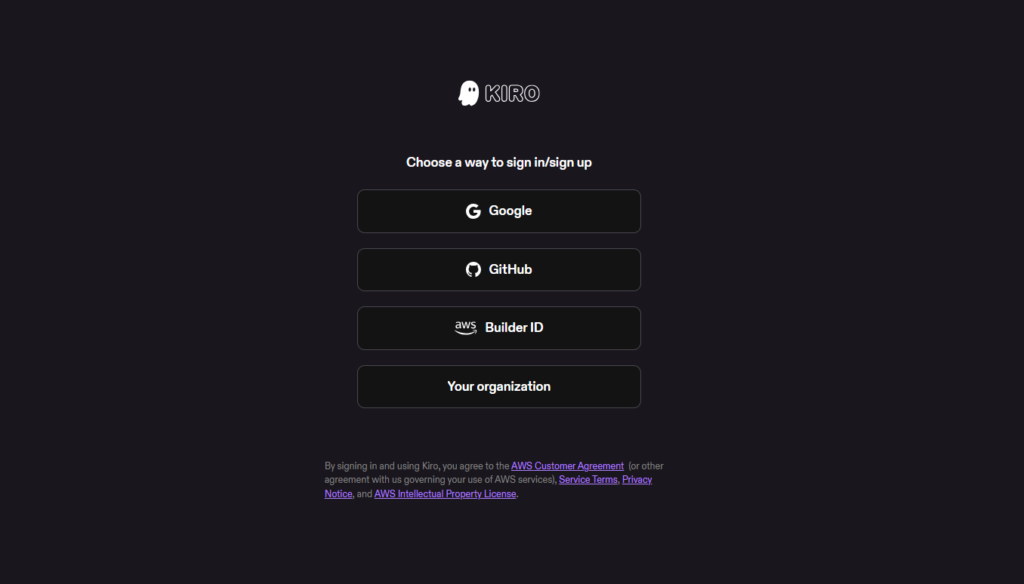
Sign in using your preferred account provider. I used a Google account for this tutorial.
Step 2 — Upgrade to Kiro Pro
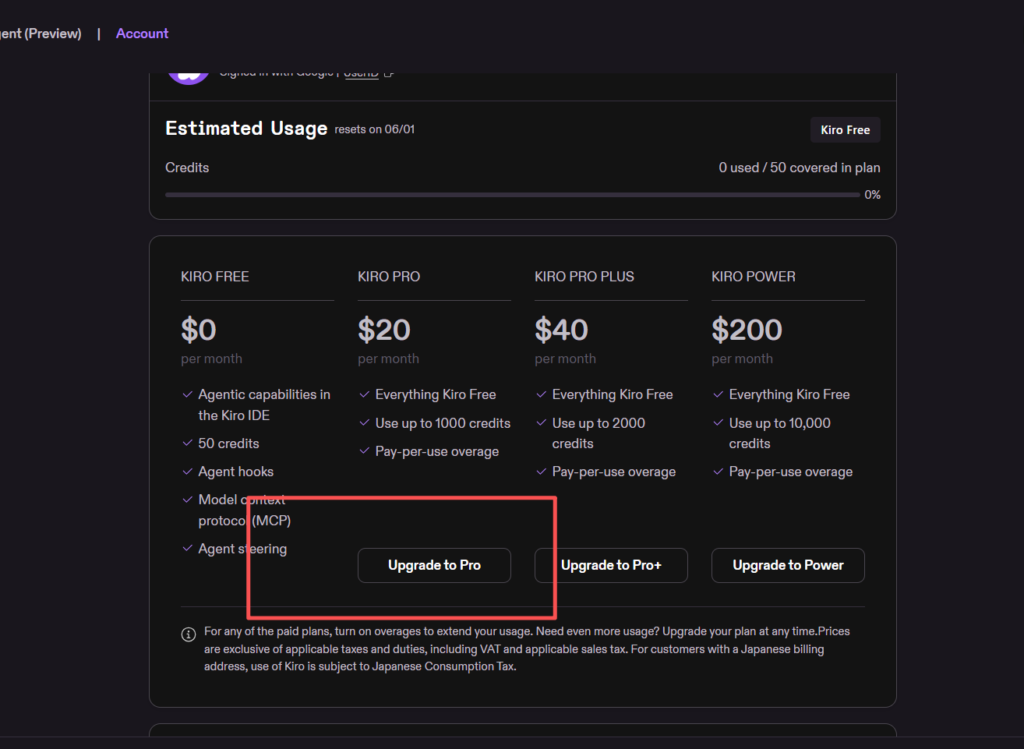
After logging in, select the Kiro Pro plan and click Upgrade.
The promotional discount only appears after entering the upgrade page.
Step 3 — Apply the Promotion
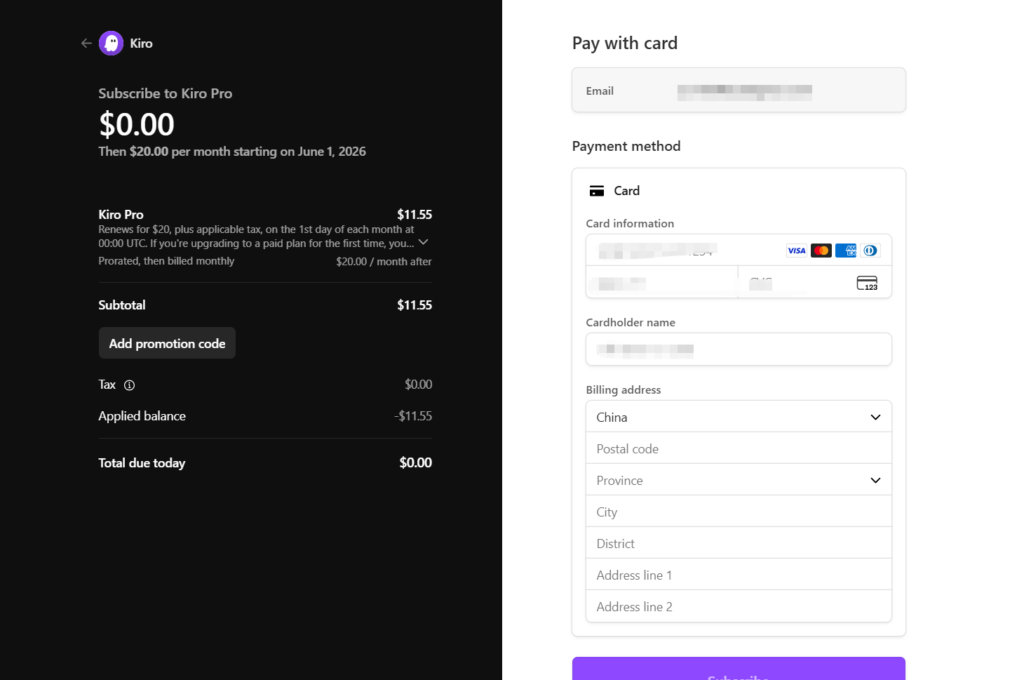
The subscription fee should automatically be discounted by the promotion credit.
Since billing starts on the first day of each month, the prorated amount may appear lower depending on the current date. In my case, the charge showed as $13.42, but the promotion covered the full amount.
Complete the verification process, enter the confirmation code if prompted, and wait a moment for activation.
Step 4 — Confirm Activation
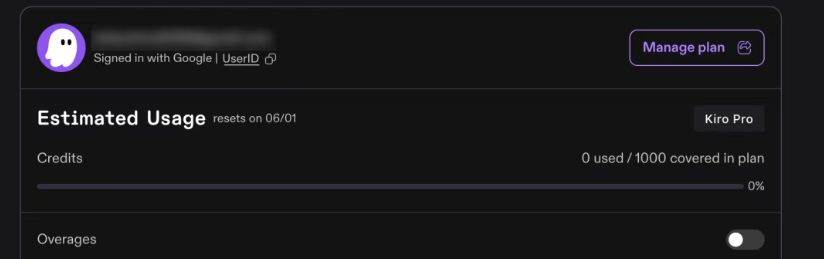
Visit: https://app.kiro.dev/account/usage
If everything worked correctly, your account should now display Kiro Pro.
Step 5 — Downgrade Before Billing
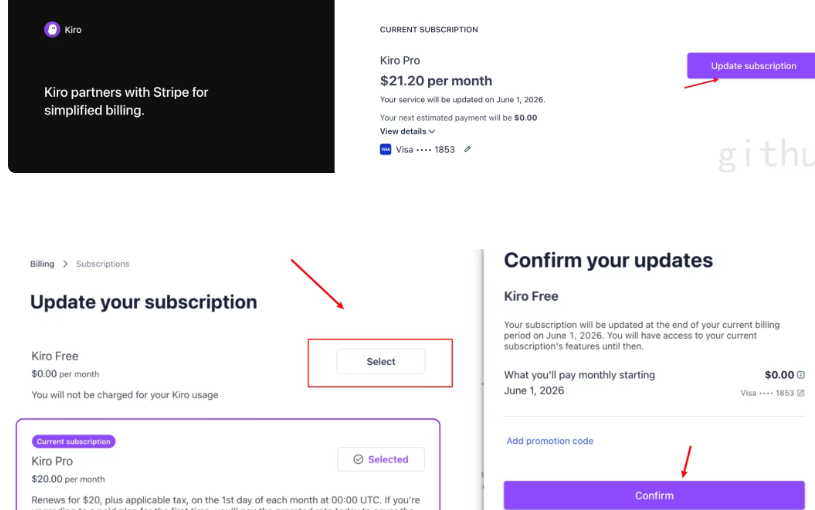
To avoid future charges, open Manage Plan, then select Update Subscription.
Switch the plan back to Kiro Free and save the changes before the next billing cycle begins.
Step 6 — Optional: Enable Overage Usage
There is also an option to enable overage usage.
Be careful with this setting, since excessive API usage could result in unexpected charges.
Real-World Experience
You can download either the Kiro IDE or Kiro CLI from the official website and start using it immediately.
Performance has been surprisingly good, especially for coding and AI-assisted development workflows.
For moderate daily development work, a single account is usually more than enough.
Using Kiro as an API Gateway
If you want to route the model through other projects or tools, check out this open-source gateway project:
https://github.com/jwadow/kiro-gateway
docker run -d \
  -p 8000:8000 \
  -v ~/.aws/sso/cache:/home/kiro/.aws/sso/cache:ro \
  -e KIRO_CREDS_FILE=/home/kiro/.aws/sso/cache/kiro-auth-token.json \
  -e PROXY_API_KEY="claude-test" \
  --name kiro-gateway \
  ghcr.io/jwadow/kiro-gateway:latest

# Check status
docker logs -f kiro-gateway
curl http://localhost:8000/health
After setup, simply configure your client to point to the local gateway endpoint and you’re ready to go.
Final Thoughts
At the moment, this is one of the easiest ways to access and experiment with high-end Claude models at little to no cost.